

Black Friday Ecommerce: How to Accept Crypto Payments on WooCommerce
Share
⏱️ TLDR CCPayment’s WooCommerce plugin lets international customers pay for Black Friday orders with crypto. They can use the same cart and discounts as other shoppers and see their payment status at checkout. You can check when an order is fully paid, then manage the proceeds in your CCPayment merchant account. If you prefer to hold USDT or USDC, Auto-Swap can convert eligible payments into your chosen stablecoin.
Is Your WooCommerce Checkout Ready for Black Friday?
“Can I pay in USDT?” If customers asked that during your last promotion, they may already have found a product they want at a price they like. What is missing is a way to pay. A crypto option at checkout lets them finish the purchase without contacting support for a wallet address or waiting for someone to match their transfer to an order.
Adobe forecasts $12.9 billion in US online sales on Black Friday 2026. For a store serving international buyers, the best place to start is with the customers your campaign already reaches. If some prefer to spend crypto, you can add that choice to WooCommerce before the sale begins.
What Should WooCommerce Stores Prepare for Black Friday?
Checkout Experience and Payment Options
Follow a sale item from the product page to checkout. After a shopper applies a coupon and selects shipping, the crypto payment request should reflect the final WooCommerce total, including any tax. Try the purchase on a phone, too. A customer who opens a wallet to pay should be able to return to checkout and see whether the payment has arrived.
International Customer Payment Preferences
Look at what buyers have asked for in support messages. A request for USDT on TRON tells you more about what to offer than a customer’s country alone. Use those requests to choose which WooCommerce payment options to feature in your campaign. Payment preferences can also vary with the purchase itself, a point explored in Stripe’s 2026 peak shopping season guide.
Payment Processing and Order Management
For a physical order, the warehouse needs to know when it can ship. For a digital order, the buyer may expect a download link as soon as payment clears. Before the sale, check which WooCommerce order status starts delivery in your store. Your team should be able to tell from the order record whether the full amount has arrived.
Why Consider Adding Crypto Payments to Your WooCommerce Store?
WooCommerce crypto payments are a good fit when your customers already hold assets they want to spend. Someone who earns USDC can buy a software license from your store even if you list the price in dollars. An overseas buyer can pay for a physical product from a wallet and still use your usual shipping and discount options.
For the merchant, the main advantage is how little needs to change before a busy sale. A ready-to-use plugin connects WooCommerce to CCPayment, so your team can offer crypto without building a system to watch for transfers. You continue to manage products and orders in WooCommerce. CCPayment handles crypto collection and shows payment updates at checkout. WPGlob’s review of CCPayment for WooCommerce
How to Accept Crypto Payments on WooCommerce With CCPayment
Install the CCPayment WooCommerce Plugin
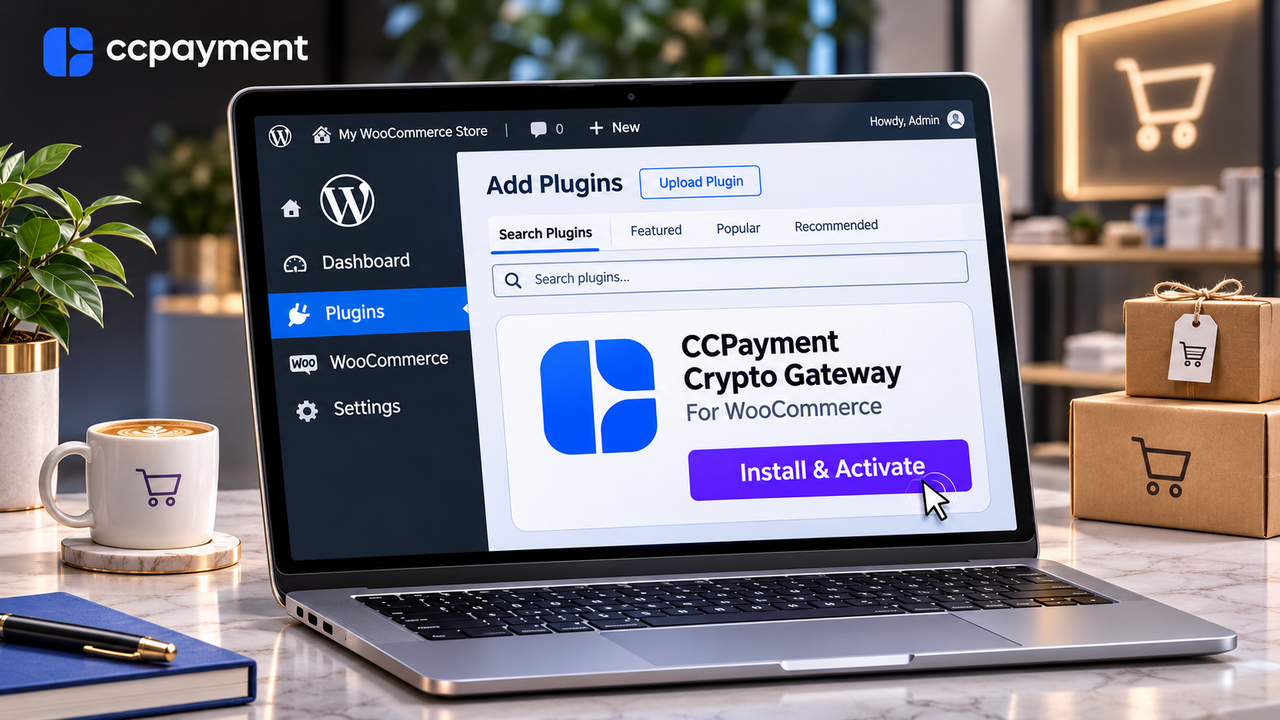
In WordPress, open Plugins > Add New Plugin and search for CCPayment Crypto Gateway For WooCommerce. Check that the publisher is ccpayment, then select Install Now and Activate. You can check compatibility on the official WordPress plugin page and find the setup steps in CCPayment’s WooCommerce plugin guide.
Connect Your Merchant Account
Register your CCPayment merchant account. In the CCPayment dashboard, open Developer > App Credentials to find your App ID and use the App Secret saved when it was created.
In WordPress, go to WooCommerce > Settings > Payments. Select Manage beside CCPayment, enable crypto payments and enter your Merchant APP ID and APP Secret. Save the settings and open your store’s checkout to see the new payment option.
Configure Crypto Payment Options
CCPayment supports 900+ cryptocurrencies across 100+ blockchains, including Bitcoin, Ethereum, TRON, Solana, BNB Smart Chain, Polygon and TON. In the merchant dashboard, go to Merchant Settings > Settings > Tokens For Your Business and choose the currencies your customers can use.
For tokens available on several networks, the buyer needs to use the network shown for that payment. If they select USDT on TRON at checkout, they should also select TRON when sending from their wallet or exchange. Check the available combinations before advertising a particular currency to your customers. Supported cryptocurrencies and networks
Test the Checkout and Order Status Flow
In the CCPayment dashboard, open Merchant Settings > Settings and turn on ETH Test Network. Select Claim Free Test Tokens to get TETH. This setting must be on to pay with ETH test tokens. Developer Test Mode has a separate purpose. It lets developers send API requests without IP restrictions while testing.
Place an order with a Black Friday coupon and pay with TETH. Check the discounted total, watch the payment status update at checkout and open the matching order in WooCommerce. For a downloadable product, finish the test by checking that the buyer can access the file.
Managing Crypto Payments During Peak Shopping Season
When Is an Order Ready to Ship?
A payment webhook tells you whether a transfer succeeded. The order record tells you whether the customer paid enough. For example, if an exchange deducts a withdrawal fee from the amount sent, the transfer can succeed while the order is still underpaid.
Open the matching order, compare the total received with the amount due and check whether the payment was flagged as risky. You can release the goods once the order is fully paid and the payment has passed the applicable checks. If the order is still open and there is a shortfall, tell the customer how much remains.
Where Does the Money Settle?
Once a payment is confirmed and passes the applicable risk checks, the funds are credited to your CCPayment Merchant Balance. You can hold the crypto there or withdraw it to a designated wallet. Your finance team can use the payment record to match the funds to the WooCommerce sale.
If you prefer to receive stablecoins, open Auto-Swap of Deposit under Merchant Settings > Settings. Choose the incoming assets you want to convert, then select USDT or USDC as your Saving Token. For example, a customer can pay in BTC while your store receives USDT for a supplier bill. You choose that rule in the merchant dashboard. The customer pays as usual at checkout.
Who Handles Refund Requests?
Once a payment has been credited to your merchant account, your store handles customer refunds under its own policy. CCPayment cannot refund a credited payment on your behalf. If a customer sends an unsupported token and CCPayment cannot credit the deposit, contact CCPayment Support for review under the unsupported-token refund policy.
What Should Merchants Check Before Launching Crypto Checkout?
- Coins and networks. The options named in your promotion are available at checkout.
- Payment confirmation. An unpaid or underpaid order stays out of the delivery queue.
- Checkout instructions. Buyers can read the amount, currency, network and receiving address on mobile.
- Refunds and orders. Support can find the payment and identify who handles the request.
- Conversion and withdrawals. Finance has checked the Auto-Swap rule and the receiving wallet.
Prepare Your WooCommerce Store for a Broader Payment Audience
Start with the currency your customers have asked for. A single discounted test order will show you what the buyer sees, when your store can deliver and where the proceeds arrive. Once those steps work, you can feature crypto in your Black Friday campaign and keep it available after the sale. Explore CCPayment for ecommerce stores.
FAQ
Q1. Do I need a developer to accept crypto on WooCommerce?
A: The standard plugin connects through your merchant account and requires no custom development. If your store uses a custom checkout, your developer can create payment requests with the CCPayment Payment API.
Q2. Can I keep my Black Friday prices in dollars?
A: Yes. You can keep your catalog prices and discounts in dollars. At checkout, the buyer sees the crypto amount payable for the final order total.
Q3. Does accepting Bitcoin mean my store has to hold BTC?
A: No. You can enable Auto-Swap for eligible incoming BTC payments and choose USDT or USDC as the asset credited to your merchant balance.