How to Set Up Withdrawal and Batch Payout Approvals in CCPayment: A CFO Checklist
⏱️ TL;DR: CCPayment uses two independent approval systems. Enabling single withdrawal approval does not protect batch payouts. This CFO guide covers how to configure both, the 30-minute batch abort window, and fee timing differences to secure your crypto payroll and airdrops.

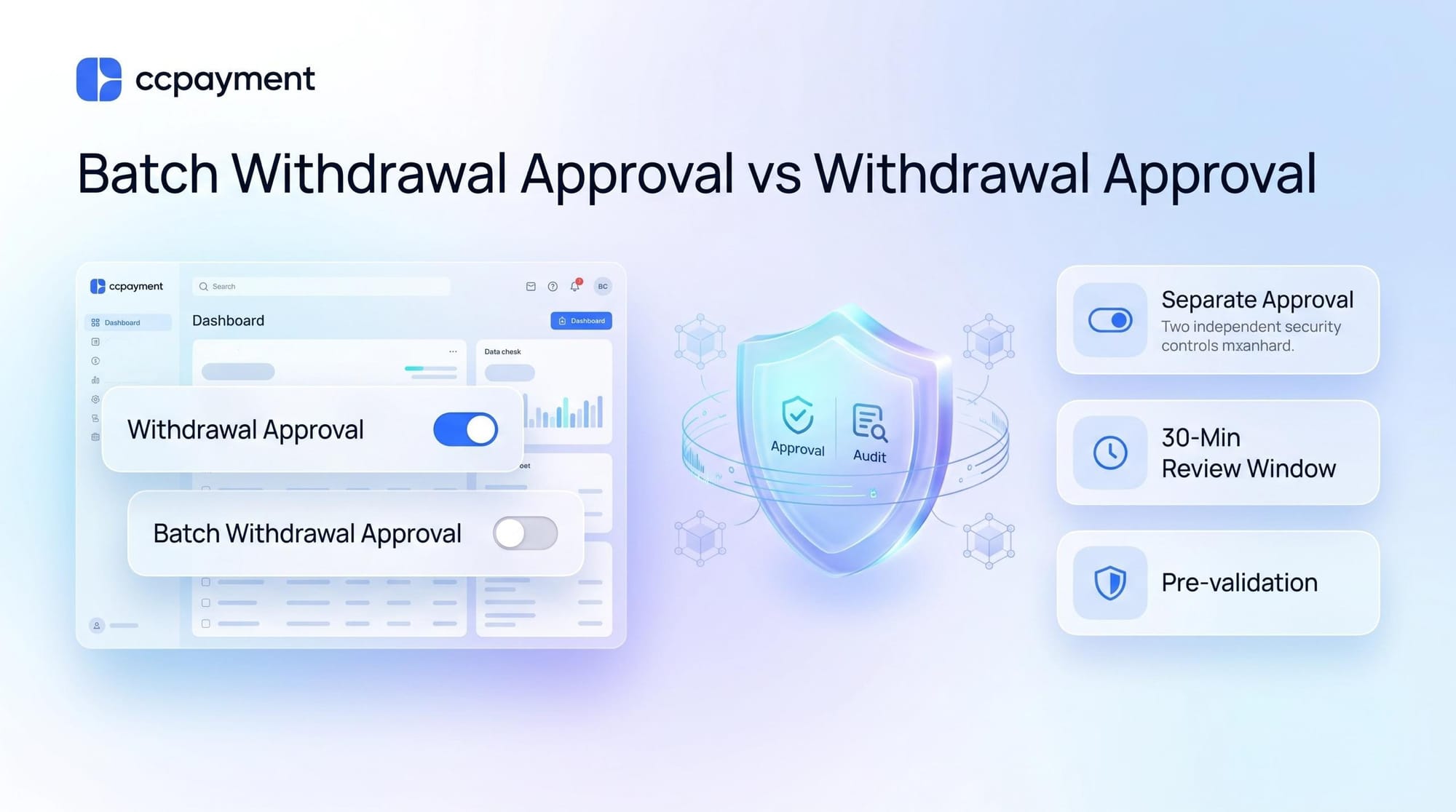
Why CCPayment Uses Two Approval Layers, Not One
A single withdrawal and a batch payout are different transactions with different risk profiles. One is a discrete transfer an approver can eyeball in ten seconds. The other might be 500 sub-orders heading to 500 addresses — payroll, affiliate commissions, an airdrop. Reviewing them under one policy means either over-controlling routine payouts or under-controlling large ones.
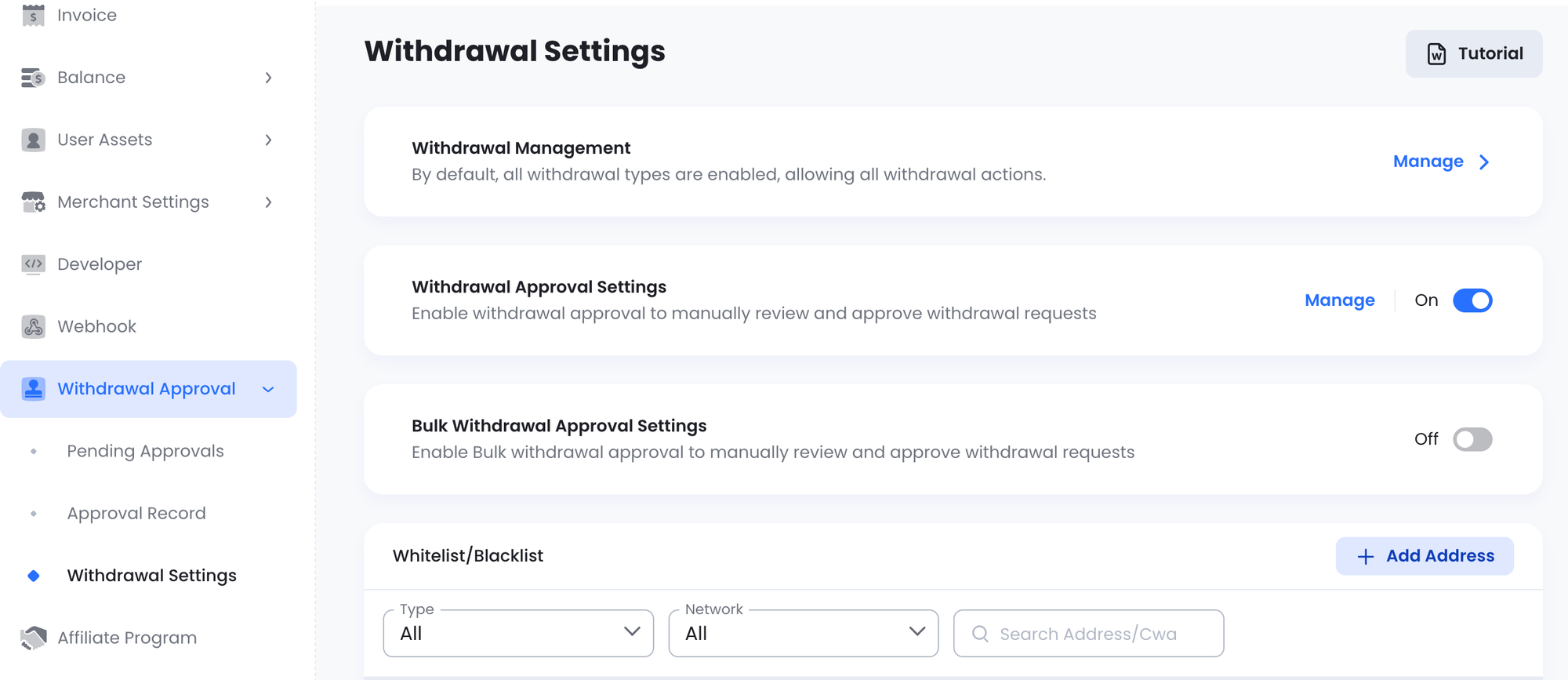
So CCPayment separates them. Withdrawal Approval Settings governs single withdrawals (API and manual). Bulk Withdrawal Approval Settings governs batch payouts submitted through the Batch Withdrawal API. Both live under Withdrawal Approval → Withdrawal Settings in the dashboard, each with its own Manage button and On/Off toggle.
This mirrors how institutional custody platforms approach governance: approval workflows sit between the transaction and the blockchain as a dedicated policy layer, with rules scoped to transaction type. Fireblocks' architecture documentation and Chainalysis' research on institutional Web3 security both treat transaction-type-specific approval as foundational to preventing unauthorized outflows.
The practical takeaway for your team is one sentence: configure both layers, and treat each as its own policy decision. The checklist at the end of this guide covers both columns.
What It Covers & How to Configure It
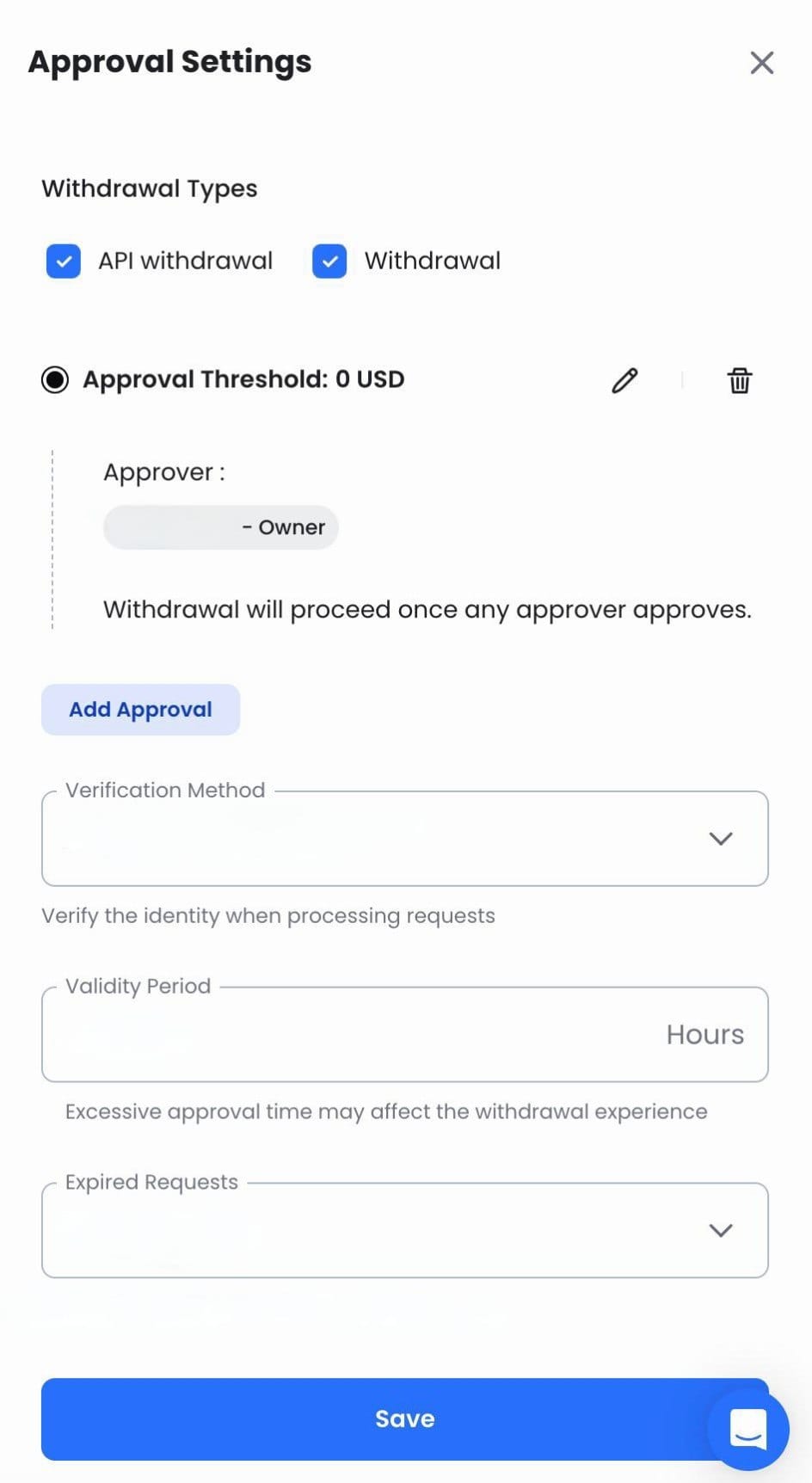
The Approval Settings page allows you to customize various parameters for the withdrawal approval process.
Go to Withdrawal Approval → Withdrawal Settings, find the Withdrawal Approval Settings row, and click Manage. Five settings:
- Minimum Amount for Manual Approval: Set a threshold amount above which withdrawals require manual approval.
- Whitelist & Blacklist: Add trusted addresses to a whitelist for automatic approval and suspicious addresses to a blacklist for automatic rejection.
- Authorized Team Members: Team members added in the merchant settings can process requests.
- Identity Verification: Choose to verify identity when processing requests
- Request Validity Period: Define how long a request remains valid. Unprocessed requests after this period will be automatically approved or rejected.
For step-by-step configuration details, see the withdrawal approval configuration guide.
What your integration sees
When a single withdrawal triggers review, the webhook status sequence is:
WaitingApproval → (Rejected) or (Processing → Success / Failed)
WaitingApproval only appears in the webhook if you have approval enabled. A rejection stops the transaction; an approval sends it on-chain.
Layer 2: Batch Withdrawal Approval
What It Covers
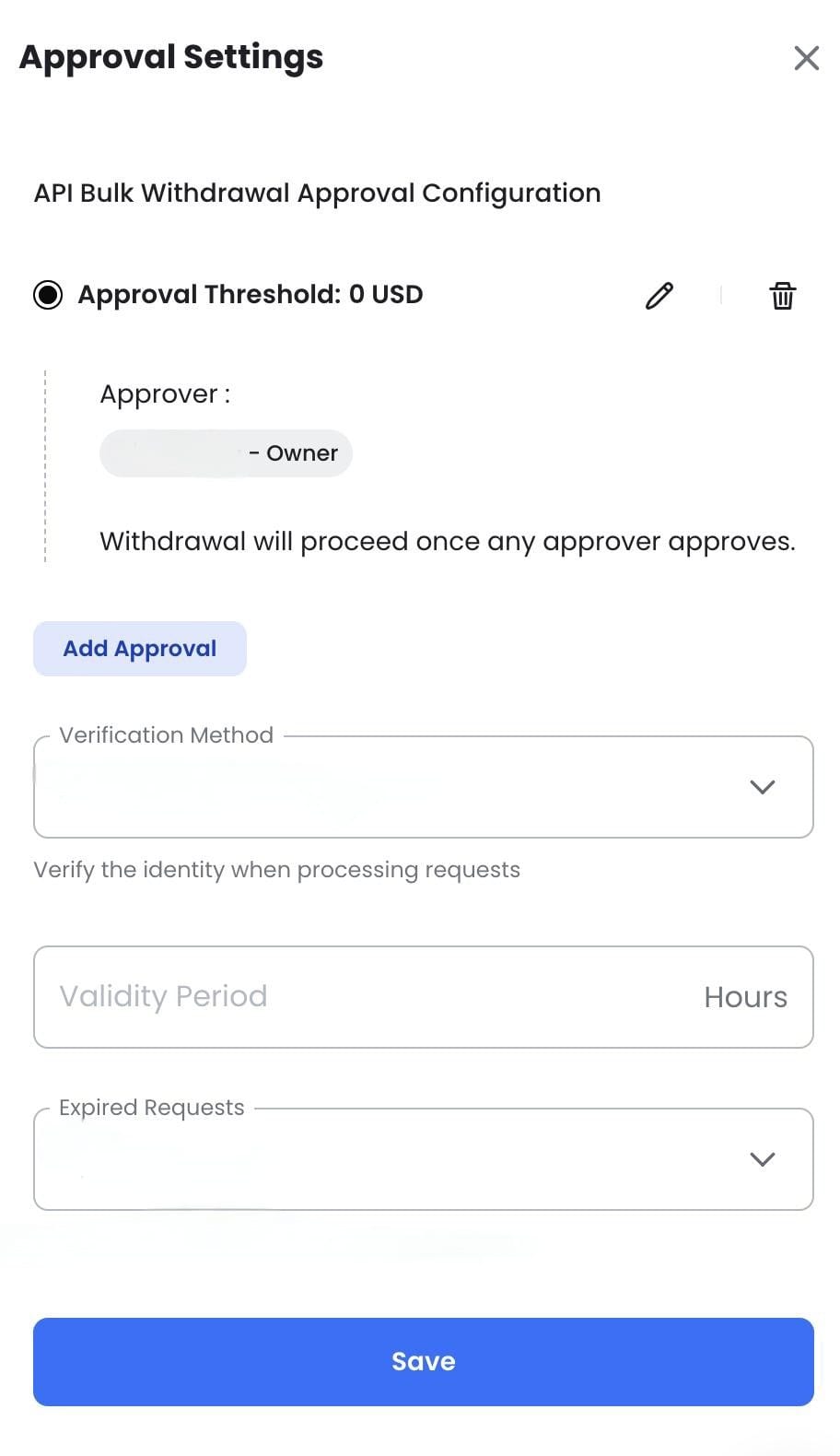
In the same settings section, find the Bulk Withdrawal Approval Settings row and click Manage. The parameters mirror single withdrawal — threshold, approver, verification method, validity period, expired-request behavior — but the values you choose should reflect batch reality: larger totals, more recipients, and a review that takes minutes rather than seconds.
How to Configure It
The fields are the same ones you'd set for a single approval — threshold, approver, verification method, validity period, expired-request behavior — but each one needs its own considered setting for batch, not something copied over from the single rule.
The Batch-Specific Flow and the 30-Minute Security Window
Batch withdrawals follow a structured lifecycle that single payouts don't. The gap between submission and execution is where you can still pull the plug.
Step 1 — Validate (optional but recommended)
Screen every recipient address with checkWithdrawAddress before creating the batch. Format errors and blacklist hits surface here, not after execution.
Step 2 — Apply
Create the batch order via the API, choosing Single mode (sequential, per-order control) or Batch mode (bundled, faster). A batch order holds up to 500 sub-orders.
Step 3 — Confirm
After Apply, the order sits in Init status for 30 minutes. Nothing moves during this window. Call confirmBatchWithdraw with confirmExecution: true to proceed, or false to cancel at zero cost — and if nobody acts within 30 minutes, the order simply expires.
Step 4 — Review and execution
Once confirmed, funds are frozen and the order moves through:
Init (30-min confirm window)
    ↓ confirmExecution: true
WaitingApproval — funds frozen, batch approval gate
    ↓ approver approves
Pending → Processing → Completed
    ↓ (if rejected)
Rejected — funds released
If batch approval is switched off, the order skips Reviewing and goes straight to Pending — which is exactly why the toggle matters.
Even after confirming, you still have an exit: abortBatchWithdraw terminates the order while it's in Reviewing or Pending, releasing the frozen funds before anything reaches the chain. One mode difference worth knowing before you need it: in Single mode, individual sub-orders can still be terminated during Reviewing, Pending, or Processing. In Batch mode, termination only works at Reviewing or Pending — once the batch is Processing, per-recipient cancellation isn't supported. If you expect to pull specific recipients mid-run, choose Single mode.
Full parameters and current limits are in the Batch Withdrawal API documentation — treat the docs as the source of truth for caps and field names.
The Fee-Timing Difference Your Reconciliation Should Expect
This is the detail that creates reconciliation mismatches when teams don't know it exists.
Single withdrawal: Network fees can be retrieved before initiating the withdrawal via the Get Withdrawal Network Fee API. Finance knows the exact cost upfront, books it, and moves on.
Batch withdrawal: Network fees—total networkFee and networkFeeCoin—are only returned in the confirmBatchWithdraw response. This is the first time they appear. They're not available before confirmation.
In practice: for batch payouts, finance should always check the fee detail in the confirmation response before the batch progresses to WaitingApproval. That's the window where total cost is known and the batch can still be aborted if fees are unexpected.
CCPayment doesn't add a service fee on withdrawals; the cost is the on-chain network fee paid to the blockchain. See the fee structure for the current breakdown by transaction type.
Single vs. Batch Withdrawal Approval: Side-by-Side
| Feature | Single Withdrawal Approval | Batch Withdrawal Approval |
| Dashboard toggle | Withdrawal Approval Settings | Bulk Withdrawal Approval Settings |
| Coverage | API Withdrawal + Console Withdrawal | API Bulk Withdrawal only |
| Default State | On | Off |
| Approval Trigger | Per-transaction, above threshold | Per batch order, above threshold |
| Configuration | Threshold, Approver(s), Expiry | Threshold, Approver(s), Expiry |
| Whitelist/Blacklist | ✅ Supported | ✅ Supported (Blacklist checked at Validate) |
| Expired Request Handling | Auto-Approve or Auto-Reject | Auto-Approve or Auto-Reject |
| Abort points | Before submission | ✅ Init window (30 min, zero-cost cancel) - After confirming: abortBatchWithdraw at Reviewing/Pending, frozen funds released |
| Funds Frozen in Review | ✅ Yes (WaitingApproval) | ✅ Yes (WaitingApproval, post-Confirm) |
| API Abort | ❌ Not supported | At Confirm: Pass confirmExecution: false After Confirm: Call abortBatchWithdraw endpoint |
| Fee timing | Available pre-submission | Returned in Confirm response |
| Status flow | WaitingApproval → Processing → Success/Failed | Init → Reviewing → Pending → Processing → Completed |
CFO Configuration Checklist—Check Both Columns
Work through both independently. A check in one column doesn't count for the other.
Single Withdrawal Approval
- "Withdrawal Approval Settings" toggle is ON under Withdrawal Settings
- Withdrawal Types selected (API withdrawal / Withdrawal / or both)
- Approval threshold set (USD amount per rule)
- At least one approver assigned per rule
- Verification method set—Payment password recommended
- Validity period defined
- Expired requests set to Reject—confirm this is intentional
- Whitelist/Blacklist addresses updated to reflect current trusted counterparties
Batch Withdrawal Approval
- "Bulk Withdrawal Approval Settings" toggle is ON—separate from single, enabled separately
- Batch approval threshold set
- Approver assigned for bulk review
- Verification method reviewed—do may not leave as "No verification required" for large batches
- Validity period defined
- Expired requests behavior confirmed—default is Approve, not Reject; review this against your policy
- Pre-validation (
checkWithdrawAddress) integrated in batch submission workflow - Finance team knows: network fees are visible in
confirmBatchWithdrawresponse, not before—build this into the approval review step
Ready to Lock Down Your Payouts?
Rather than treating approvals as isolated security controls, CCPayment integrates approval workflows into a unified payment infrastructure that spans collections, payouts, treasury management, and reconciliation. The result is lower operational friction without sacrificing governance—two independent switches, one dashboard, zero gaps.
👉 Log into your CCPayment Dashboard and verify both toggles now
FAQ
Q1: What can I use batch payouts for?
A: Anything that pays many wallets at once: token airdrops, faucet and task rewards, affiliate or advertising commissions, and crypto payroll. One order covers up to 500 addresses.
Q2: Can I airdrop tokens to my whole community in one go?
A: Yes, upload the address list, validate it, and send as one batch order. The approval step gives the total a final human check before anything goes on-chain.
Q3: Will enabling Batch Approvals delay my automated micro-payouts (e.g., faucets, rewards)?
A: You can set a custom approval threshold just above your routine batch size, allowing small payouts to pass automatically. The manual approval process only triggers when a total amount exceeds your predefined limit, ensuring both efficiency and security.
Q4: How do I pay my affiliates or publishers in USDT every month?
A: Send each settlement cycle as one batch order. Whitelist your regular partners' addresses, so their payouts never wait for approval.
Q5: I enabled withdrawal approval — are my batch payouts protected too?
A: Not yet. Batch payouts have their own separate switch (Bulk Withdrawal Approval Settings) — turn both on.
Q6: If I made a mistake in a batch — can I still cancel it?
A: Yes. You have a free 30-minute window before confirming, and even after that you can abort while the order is under review — frozen funds come back in full.
Q7: Where do I find the network fee for a batch before it executes?
A: Network fee details—networkFee and networkFeeCoin—are returned in the response to confirmBatchWithdraw. That's the first point where the total fee is known. This is different from single withdrawals, where you can call the Get Withdrawal Network Fee API to query the exact network fee before initiating the transaction. Finance teams should make fee review part of the confirmation step for batch payouts.
Q8: What does it cost for withdrawals?
A: CCPayment does not charge a service fee on withdrawals—neither single nor batch. The only cost is the on-chain network fee, which varies by blockchain and network conditions.
Crypto Adoption for Business 2026
Deep dives into Web3 payments, industry trends, and how to scale your global commerce with zero-code integrations.