How to Track Crypto Payment Flows with CCPayment’s Transaction Ledger

⏱️ TL;DR: CCPayment’s Transaction Ledger connects financial statement totals with individual accounting entries. Merchants can search by Record ID or Order ID, trace fees to their source, and filter completed inflows and outflows by Transaction Type, Fee Type, Direction, Token, and date. The result is a clear path from a reported total to the transactions behind it.
Your finance team is reviewing the day’s crypto payments. The statement shows total fees, and a colleague asks which orders generated those charges. As payment volume grows, answering that question means checking more deposits, payouts, and order references.
CCPayment’s newly launched Transaction Ledger lets merchants follow financial statement totals through to individual accounting entries. They can search for a payment, review its recorded fund movements, and check the amounts against business orders. These details give finance and operations teams a practical way to handle crypto payment reconciliation in the merchant dashboard.
Why Crypto Payment Reconciliation Becomes Difficult at Scale
A fee total may combine charges from different transactions. Finance needs to identify the entries that make up the total and understand the business activity behind each one. Deposits, withdrawals, swaps, and automatic withdrawals can all produce different accounting entries.
Order matching becomes harder when teams use different references. A support conversation may include a CCPayment Record ID, while the merchant’s own system uses an Order ID. An order can also involve multiple transactions, adding more records to review.
Date and token selections also affect the comparison. Records selected for different dates or tokens can produce different totals. Teams need to use the same reporting period and separate incoming payments, outgoing amounts, and fees. Otherwise, a mismatch may come from the records selected for review.
What CCPayment’s Transaction Ledger Adds
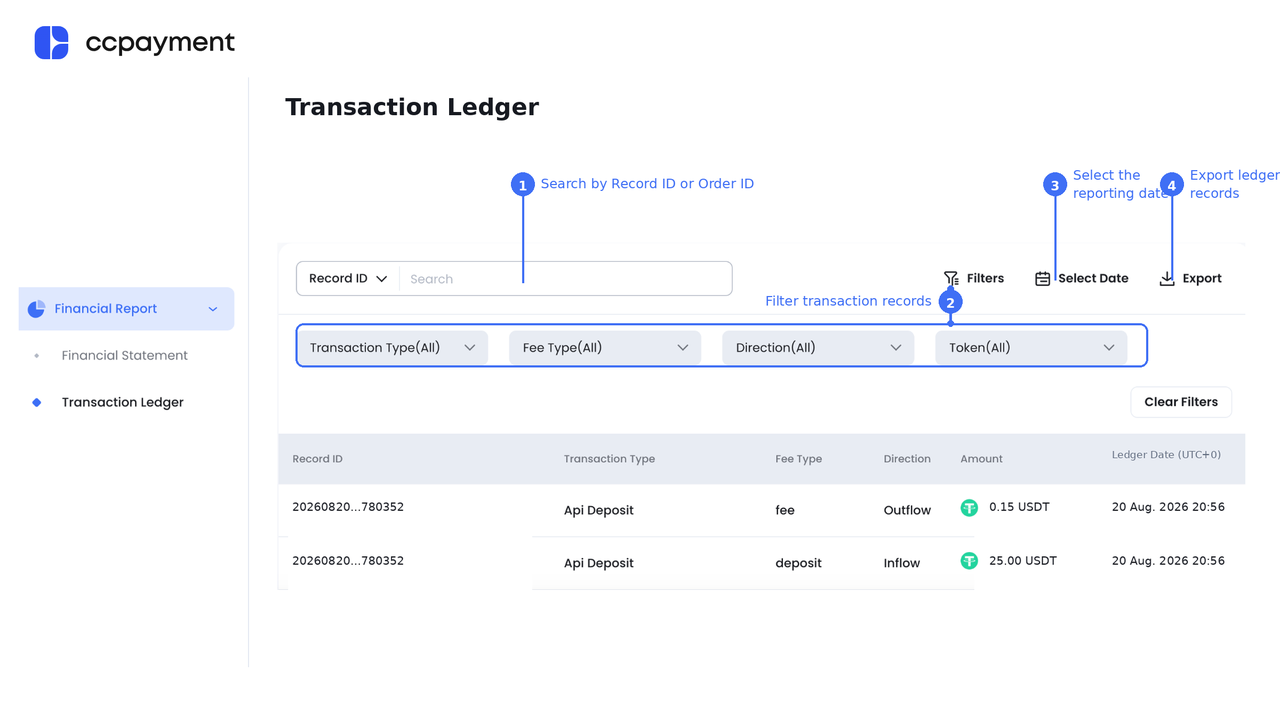
CCPayment’s crypto transaction ledger sits under Financial Report in the merchant dashboard. It lists accounting entries from successfully completed transactions, with a Record ID, Transaction Type, Fee Type, Direction, Amount, and Ledger Date for each row.
Its connection with Financial Statement gives merchants a direct route from an overview of account activity to the records needed for a detailed review.
Find Individual Transactions by Record ID or Order ID
Quick Search supports both Record ID and Order ID. Select the identifier from the search dropdown and enter the reference associated with the payment or order you are investigating.
Record ID search helps locate entries belonging to a CCPayment transaction. Order ID search helps connect the ledger with the order reference used in your business system. When an order involves several transactions, review the matching entries together.
This gives finance, operations, and developers a shared reference for discussing a payment. A colleague can pass along the relevant ID, allowing the next person to locate the entries and check their amounts and ledger dates. Keeping these identifiers in business records also makes future investigations easier.
Trace Statement Totals Back to Transaction Details
Financial Statement summarizes activity by coin, including total inflow, total outflow, net flow, and beginning and ending balances. Open a coin’s Details window to see the amounts and counts grouped by entry type.
From that window, click Transaction Ledger to open the corresponding records. The selected date and coin carry over, so you can continue checking the same day and asset without selecting them again.
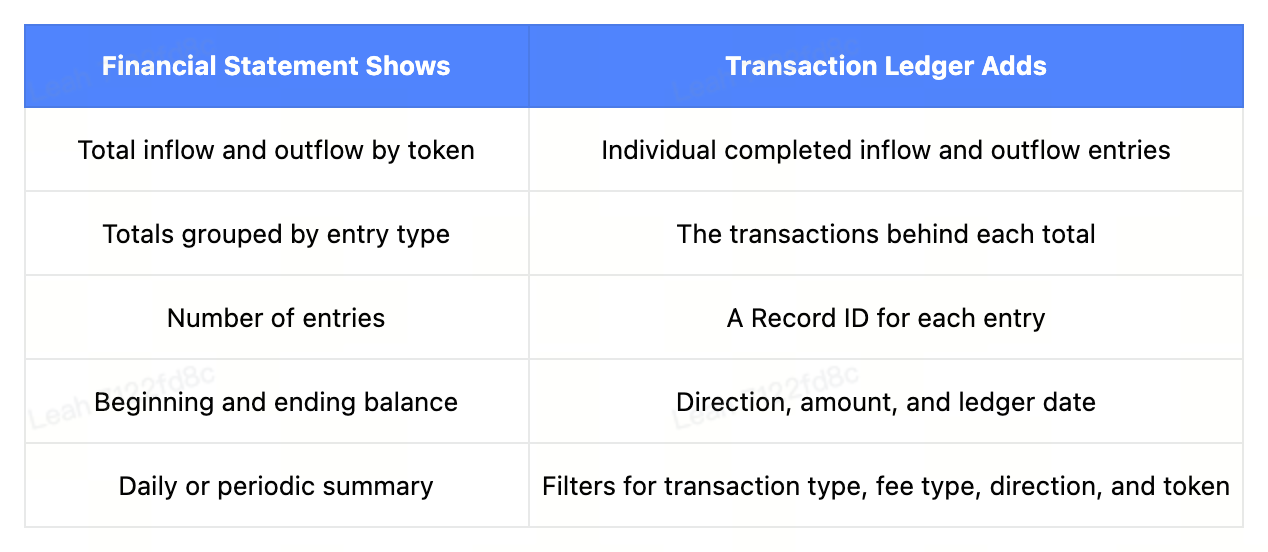
Finance can then examine the entries behind a total and identify which transactions contributed to it. For fee checks, select the relevant Fee Type after opening the ledger. Each charge can then be checked against its transaction reference and ledger date.
Understand Each Entry by Transaction Type and Fee Type
Transaction Type identifies the business activity, such as Deposit, Withdrawal, Swap, or Auto Withdrawal.Fee Type identifies the specific entry, including principal movements such as deposit and withdraw, or charges such as fee and network_fee.
Direction shows whether funds moved into or out of the account. Reading these fields together helps explain each row. A deposit amount may appear as an Inflow, while its service fee appears separately as an Outflow under the same Record ID.
Filters let merchants narrow records by Transaction Type, Fee Type, Direction, and Token. Together with the date selector, they support focused reviews of particular activities or charges.
For example, a merchant reviewing payout costs can combine a withdrawal Transaction Type with network_fee and the relevant token. A team checking received payments can select Inflow and focus on deposit activity. These combinations reduce the number of unrelated entries in view and make repeated checks easier to organize.
For a breakdown of transaction types, fees, and their corresponding report fields, see Transaction Reporting Guidelines, available in the upper-right corner of the Transaction Ledger page.
A Practical Reconciliation Workflow
Consider a finance team checking the service fees in a daily USDT statement. The following workflow traces a reported fee total back to the individual entries behind it.
- Open Financial Report → Financial Statement and select the reporting date.
- Find USDT and click Details to review the breakdown by entry type.
- Check the amount and count shown for
fee. - Click Transaction Ledger at the bottom of the window. The selected date and coin are carried into the ledger.
- Open Filters, select Fee Type, and choose
fee. Compare the resulting records with the amount and count shown in the statement.
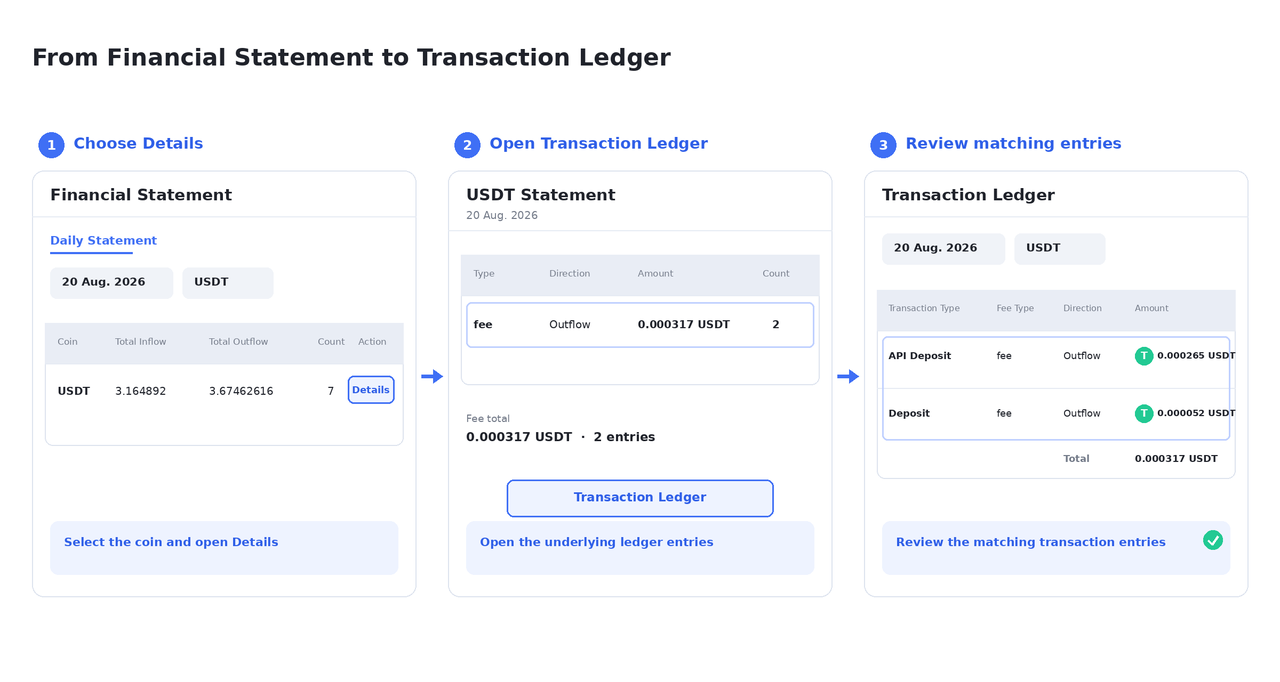
Illustrative example showing how a fee total in Financial Statement links to matching Transaction Ledger entries. All figures are sample data.
In this example, the statement shows 0.000317 USDT in fees across two entries. Transaction Ledger lists an API Deposit fee of 0.000265 USDT and a Deposit fee of 0.000052 USDT. Together, the two entries match both the statement total and its count.
Each entry also includes a Record ID and Ledger Date, allowing finance to identify the transaction behind either charge. To review the payment amount and fee together, copy the relevant Record ID and search for it in Transaction Ledger. Clear the fee-only filter so the related principal entry can appear alongside the charge, then compare both entries with the payment information in your business system.
If the totals differ, check the selected date, displayed time zone, token, and Fee Type. Network fees use a separate network_fee category and should be compared with the corresponding statement total. You can also use Export to download ledger records for further review or to prepare crypto accounting records.
Start with Your Next Reconciliation
Ready to trace a statement total to the transactions behind it? Open the CCPayment merchant dashboard, select a daily statement under Financial Report → Financial Statement, and complete your first transaction-level reconciliation today!
FAQ
Q1: Can I search by Record ID or Order ID?
A: Yes. Select either identifier in Quick Search and enter the corresponding reference.
Q2: Why can one transaction appear on multiple ledger rows?
A: Principal amounts and fees may appear as separate entries. The shared Record ID connects them to the same transaction.
Q3: Why can I only see the previous day’s Financial Statement?
A: Statement data is calculated daily at midnight. The current day’s statement becomes available after the next calculation cycle. For example, on September 1, August 31 is the latest completed daily statement.
Q4: Who can access Transaction Ledger?
A: Merchant team members with Owner, Partner, or Accountant roles can access it.
Crypto Adoption for Business 2026
Deep dives into Web3 payments, industry trends, and how to scale your global commerce with zero-code integrations.